

Planner
Tips & Guide
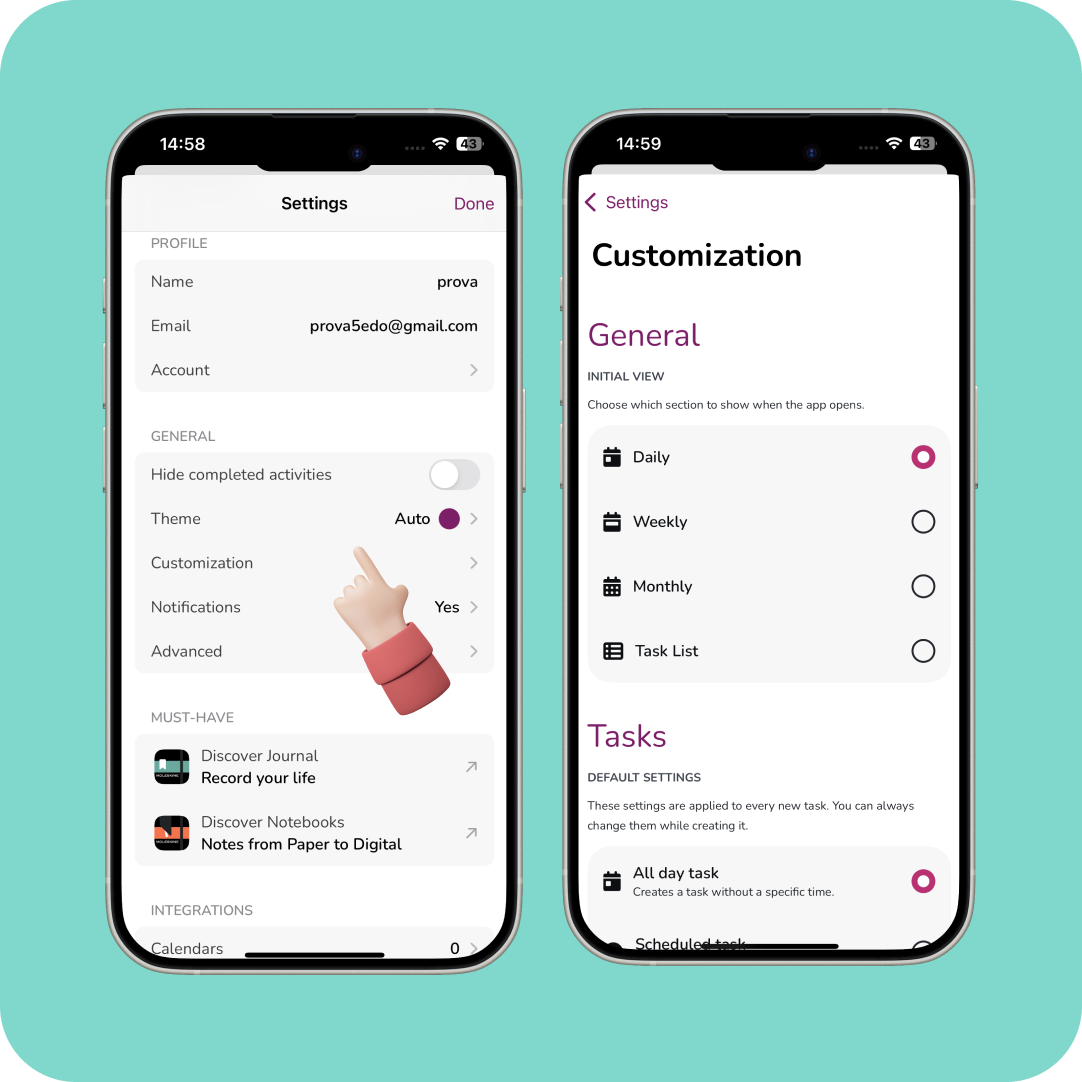
Make Moleskine Planner Your Own
Quickly browse tasks across multiple days and add new ones using the + button on each day.
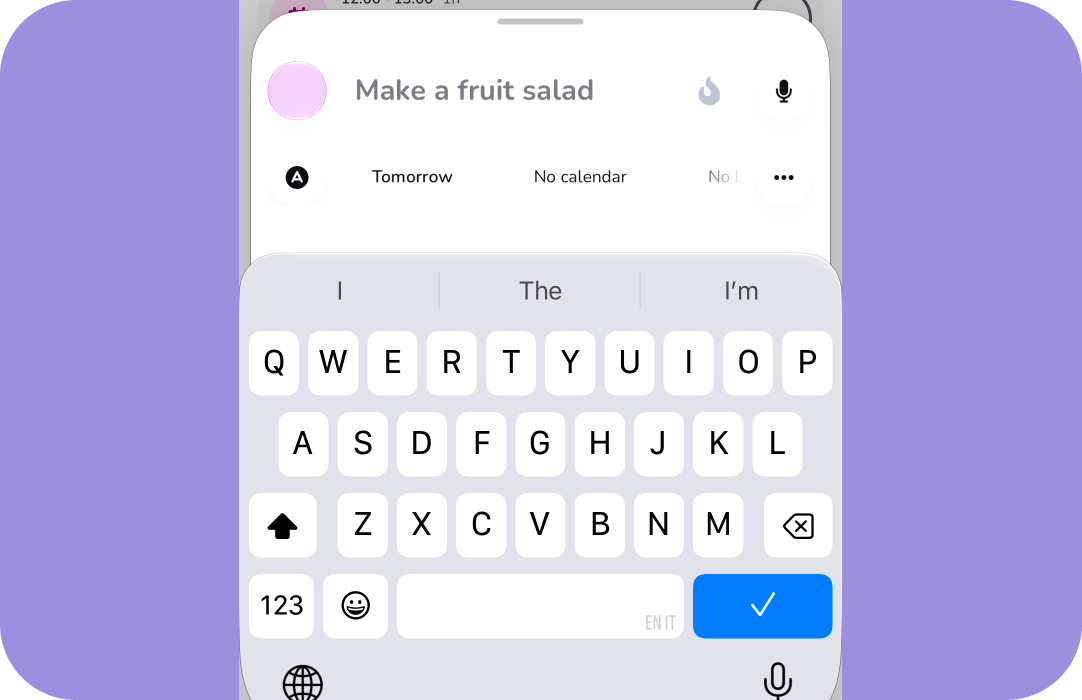
Discover the new Quick Add menu
Type your task title, then use the menu right below it to quickly customize your task.
Tap the “A” icon to enable Auto-Move, which automatically moves the task to the next day if it isn’t completed.
Next, choose the date and time, then swipe through the menu to access more options.
To see all available settings at once, tap the three dots or swipe up on the editing menu.

See more with Scroll View
Quickly browse tasks across multiple days and add new ones using the + button on each day.

Organize tasks with Lists
Group related tasks by topic and, for future tasks. See at a glance how many days are left until they’re due. Tap the completed/total count to see completed tasks in the list,

Create tasks faster from Week View
Long-press any day cell to open the task editor with that date already selected.

View subtasks at a glance
Enable Show Subtasks to view and complete subtasks directly, without opening the task editing menu.

Jump back to Today
While browsing past or future dates, tap the Today icon at the top to instantly return to today.

Show completed tasks
If Hide Completed Tasks is enabled, tap the completed/total task count in the top-right corner to quickly view your completed tasks.

Day View Preferences
Tap the second icon from the right in the top-right corner to open Preferences, then choose between Block View and Timeline View.

Plan with precision between tasks
Use the time slider to position tasks exactly where you want them. Drag from the center to move the entire task, or use the side handles to adjust its duration.

Reschedule
To quickly reschedule a task, long-press it, tap “Move to”, then select a new date.

Month view
To quickly navigate between months and days, tap the date in the upper-left corner, then use the month navigation menu to select the desired date.


Copy/Paste Activity
Tap on the activity you want to copy, then tap the copy icon. Next, use the date/time picker to select the destination for the activity. Finally, tap "Duplicate Activity" to complete the process.

Add Calendars
Tap on the settings menu, then select "Calendars." Next, use the checkboxes the on the right to choose the calendars you want to display in Moleskine Planner.

Edit task end time
Tap on your task, open the edit menu, and select the end time. Now, choose the desired end time for your task.

Change task date
Tap on your task, open the edit menu, tap on the assigned task date, then select the new date.