
How to Resolve Sign In with Apple Issues on iPhone/iPad
If you’re having trouble signing in with Apple, the issue is likely caused by an anonymous Apple login. In some cases, this prevents us from correctly connecting your Apple ID to your existing account.
To fix this, you have two options:
Recover your existing account
Reset the account and start fresh
1. Recover your account
Use this option if you want to keep your existing data.
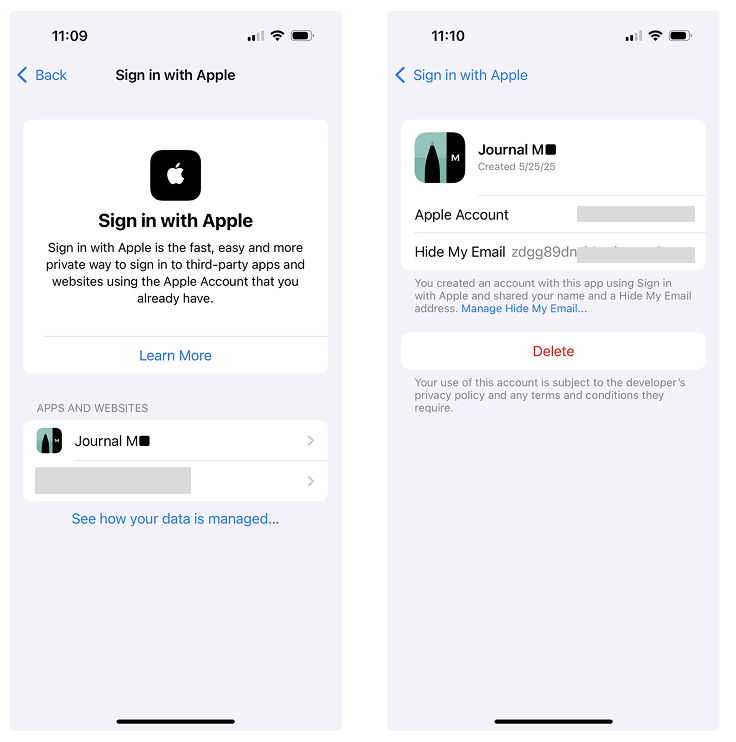
Open Settings on your iPhone/iPad > Tap Apple ID (your name at the top) > Go to Sign in with Apple.
Find and select Journal M■.
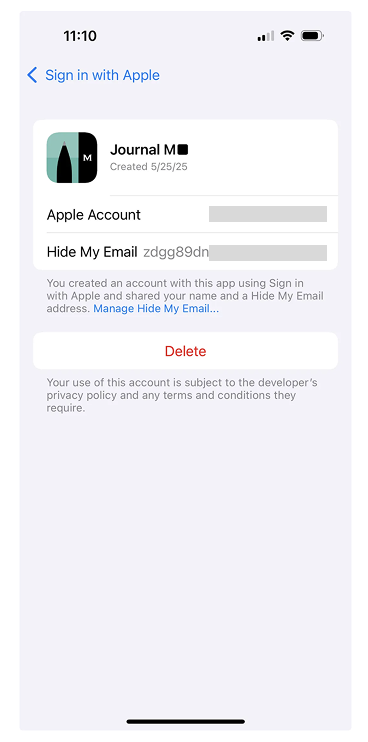
Tap the email address shown there to copy it (see screenshots below for reference).
Go back to the app and start the “Forgot password” flow using this email.
You will receive a reset code in your regular inbox.
Set a new password and sign in using the copied email and your new password.
Important:
If you previously deleted your Moleskine Account, recovery will not work. In that case, follow the instructions below to reset the account.
2. Reset the account (start fresh)
Use this option if recovery fails or if the account was previously deleted.
Open Settings on your iPhone/iPad.
Tap Apple ID > Sign in with Apple.
Select Journal M■.
Tap Delete to remove the old Apple login association.
⚠️ This permanently removes access to the old account and its data.
Reopen the app and register again.
You’ll be able to sign in with Apple correctly.
Apple will assign a new anonymous email (or use your real email, based on your choice).
Feel free to contact us if you encounter any issue with this guide, we’ll be happy to help.
