
Set up Moleskine Planner to match your planning style, habits, and daily needs.
Everyone plans differently. That's why Moleskine Planner lets you customize your experience, from how you view your schedule to how you create and organize tasks.
Follow these simple steps to make Planner work the way you do.
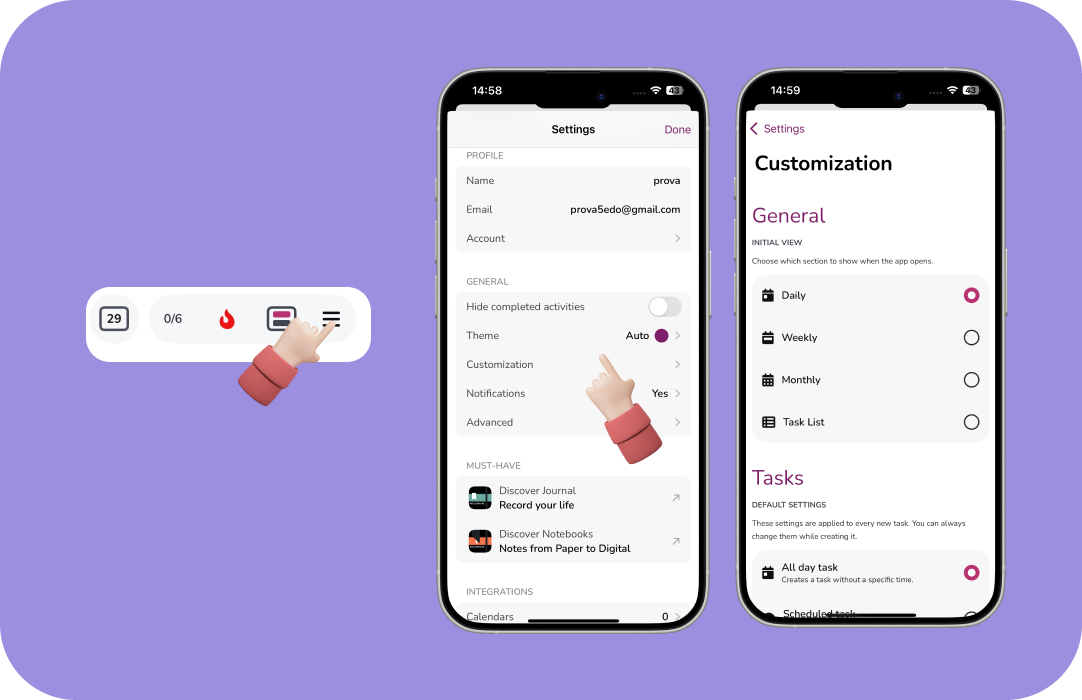
1. Open Customization Settings
To get started, tap the menu icon (three horizontal lines) in the top-right corner of the app.
Under the General section, select Customization to access your planning preferences.
2. Choose Your Default View
Decide how you want to see your schedule every time you open Moleskine Planner.
Choose the view that best fits your planning style:
Daily View: Focus on one day at a time.
Weekly View: Get a clear overview of your week.
Monthly Scroll View: Explore your schedule across multiple days with a continuous scrolling layout.
Task List: Keep your activities organized in a simple list.
Your selected view will automatically appear whenever you launch the app.
3. Choose How You Create Tasks
Do you prefer quick to-dos or carefully scheduled activities?
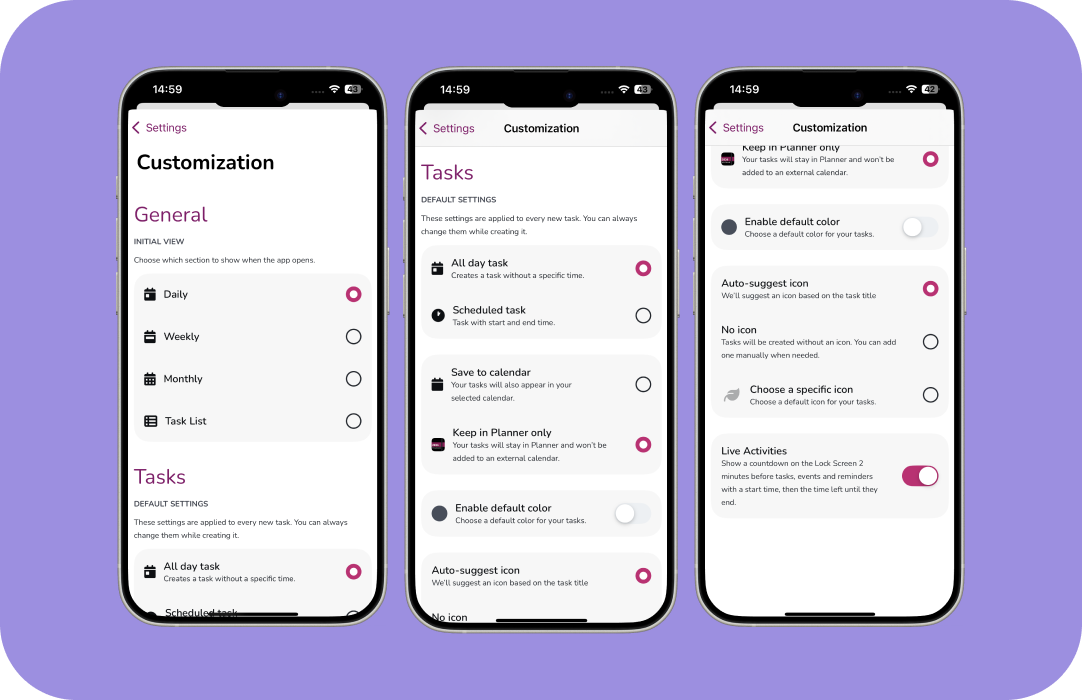
Moleskine Planner lets you choose your default task creation style:
All-Day Tasks: Create tasks without a specific start or end time. Perfect for quick to-dos and flexible activities. You can always add a time with just one tap.
Scheduled Tasks: Create tasks with start and end times right away. Ideal for timeboxing and planning your day with precision. Need an all-day task instead? It’s still just one tap away.
Whatever your preference, you can easily switch between the two whenever you create a task.
4. Sync Tasks with Your Calendar
Want to keep everything connected?
Choose whether tasks created in Moleskine Planner should also be saved to an external calendar, such as Google Calendar or Apple Calendar.
This helps you keep your schedule and activities together, across the calendar tools you already use.
5. Personalize Your Task Icons
Make your planner as visual or minimal as you like.
Choose whether you want icons to appear alongside your tasks or prefer a cleaner look without them.
It’s a small detail that can make a big difference in how you experience your daily planning.
Your Planner, Your Way
With just a few simple choices, you can create a planning experience that feels natural from the moment you open the app.
And remember, you can always change these preferences later as your habits and needs evolve.
Moleskine Planner. Designed around the way you plan.
